

Swap Aircraft on Accept: A New Way for Operators to Respond with Flexibility
April 21, 2026 - 2 MINUTES READ
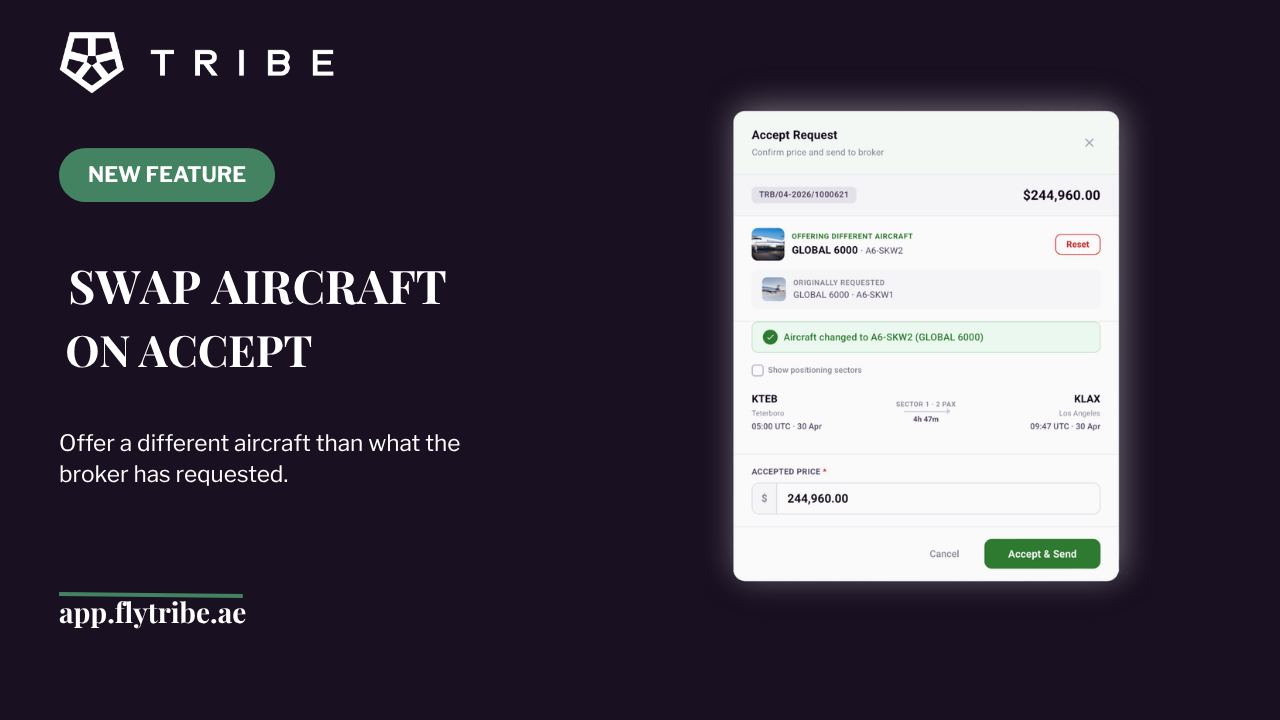
Table of content
How to Swap Aircraft When Accepting a Request on Tribe
A step-by-step walkthrough for operators using Tribe's new Swap Aircraft on Accept feature.
Sometimes the aircraft originally requested isn't the best fit by the time you're ready to respond. Maybe another tail is better positioned. Maybe maintenance schedules shifted. With Tribe's new feature, you can now change the aircraft directly inside the acceptance flow.
Here's exactly how it works, from the moment the request arrives to the broker's confirmation.
---
Broker Sends a Request
The workflow begins when a broker submits a trip request through Tribe for a specific route; for example.
Operator Receives the Request
You'll see the incoming request appear in your quptes page with all the key details: the broker's name, route, date, passenger count, and the originally requested aircraft.
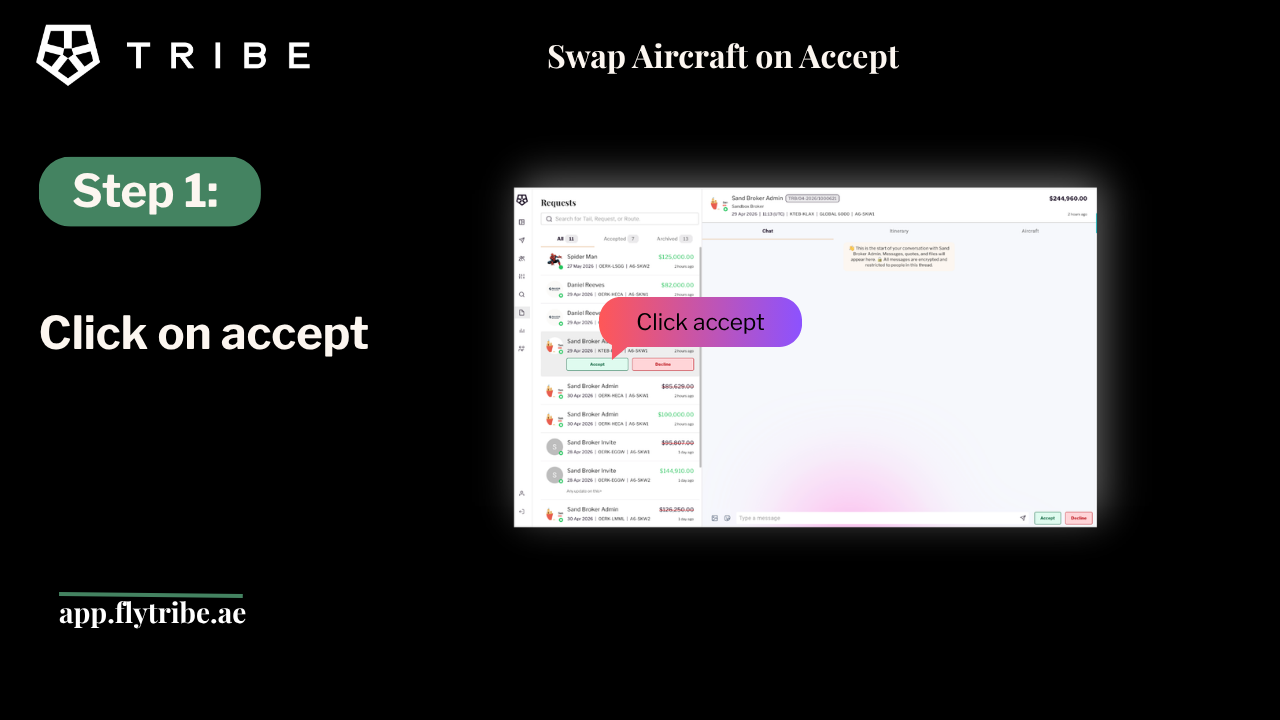
Step 1: Click "Accept"
Open the request and click the **Accept** button. This brings up the **Accept Request** window, where you'll confirm the price and aircraft before sending it back to the broker.
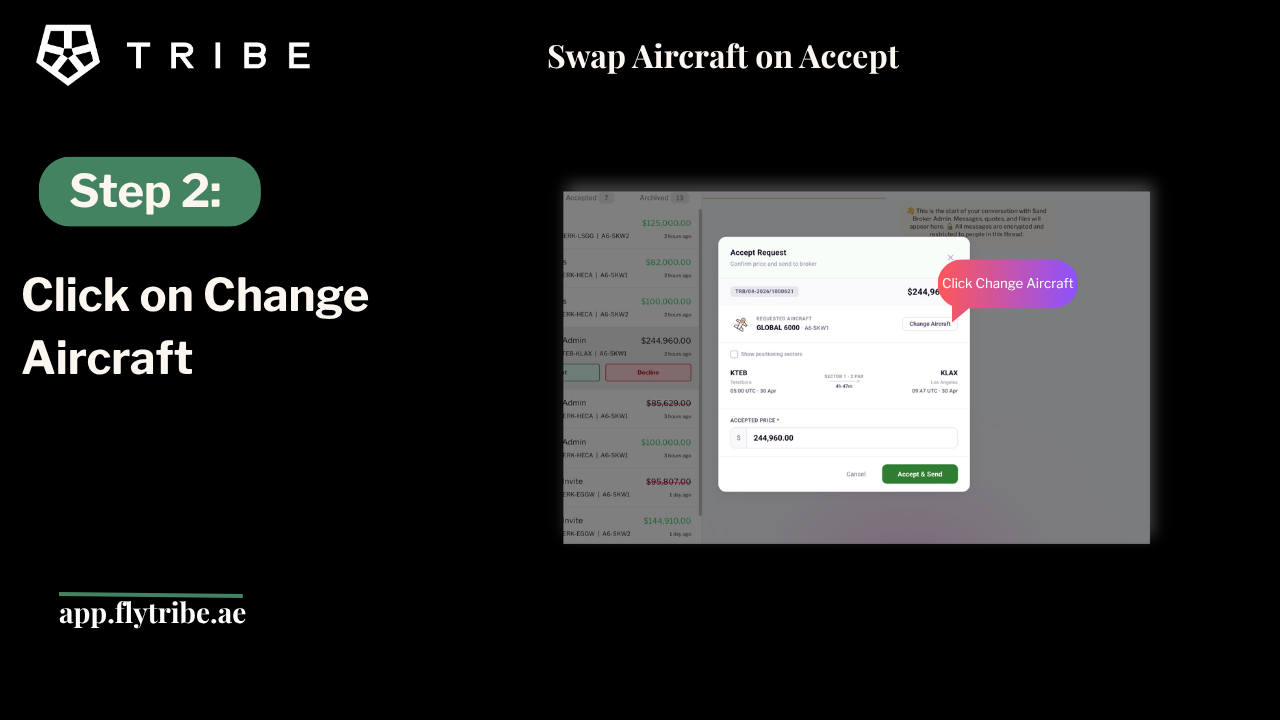
Step 2: Click "Change Aircraft"
Inside the Accept Request window, you'll see the aircraft originally requested. To propose a different one, click **Change Aircraft**.
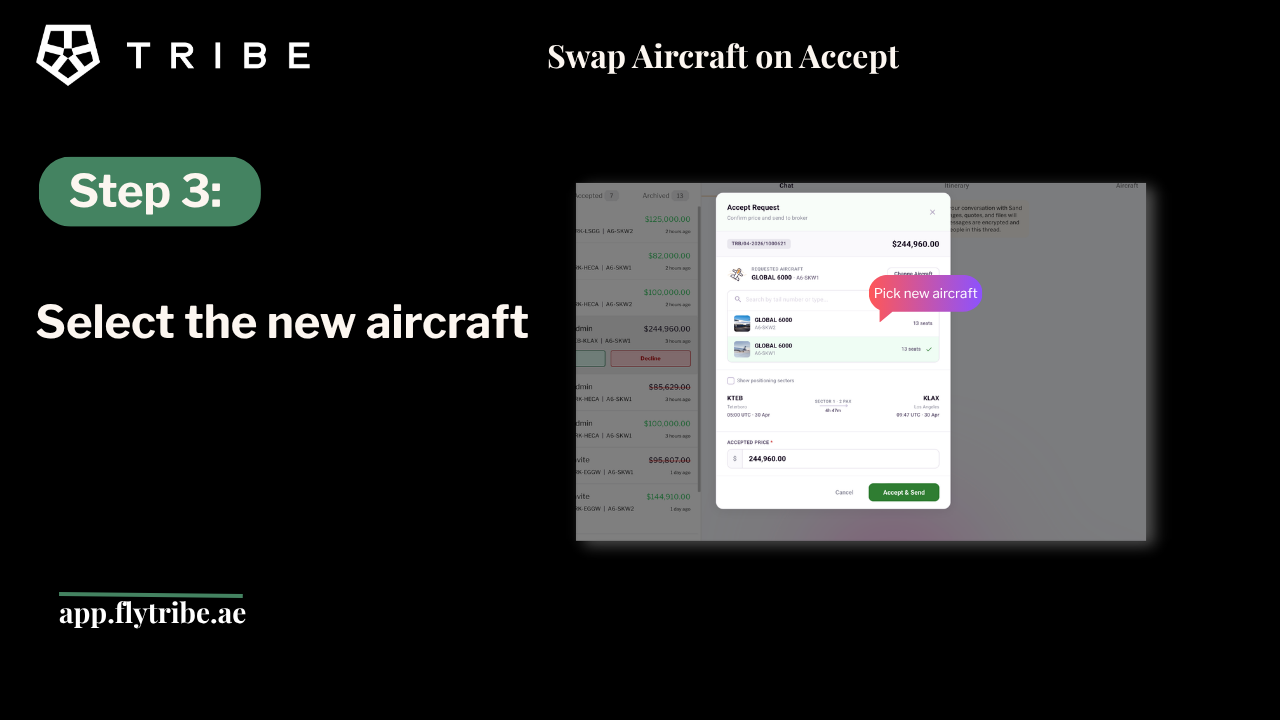
Choose a New Aircraft
Select the aircraft you'd like to offer instead from your fleet. Once selected, the new aircraft appears under **"Offering Different Aircraft,"** while the originally requested aircraft is clearly shown below it as **"Originally Requested."** A green confirmation banner appears: *"Aircraft changed to [new tail] ([aircraft type])."*
Changed your mind? Simply click the **Reset** button next to the new aircraft selection. The request will revert back to the original aircraft the broker requested — no action needed from the broker's side.
Adjust the Price (Optional)
If switching aircraft means adjusting the price, update the **Accepted Price** field in the same window. This is fully optional if the price stays the same, leave it as-is.
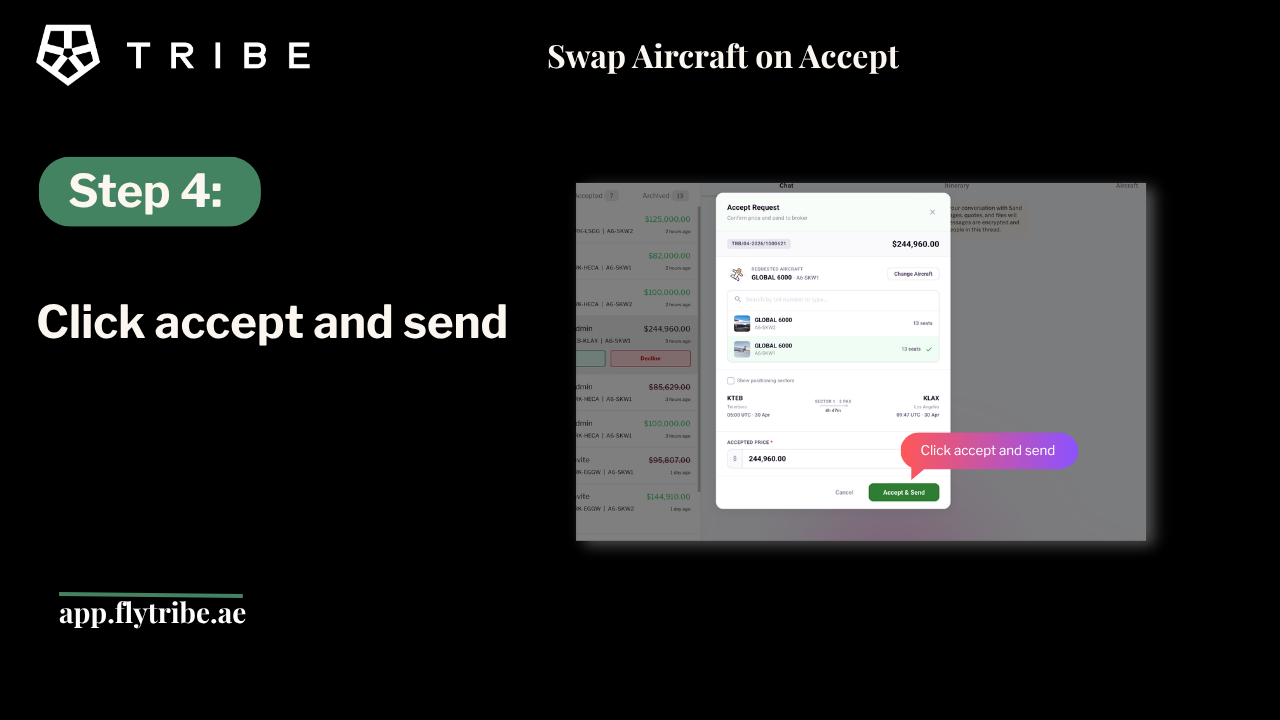
Step 4: Click "Accept & Send"
Once you're happy with the aircraft and price, click **Accept & Send**. Tribe handles the rest.
Broker Receives the Acceptance
The broker automatically receives an acceptance email showing:
- The **new aircraft** you've proposed
- The **original aircraft** they requested, for full transparency
- The **accepted price** and trip details
No additional messages or clarifications needed everything is communicated clearly in one acceptance.
Change Reflected in the Broker's Quote Screen
The aircraft swap is also updated live in the broker's quote view inside Tribe. They'll see both the originally requested aircraft and your proposed aircraft side by side — making it easy to review and move forward.
That's It
In under a minute, you've accepted a request, proposed a better-fit aircraft, and kept the broker fully informed — all without leaving the acceptance flow
The ability to provide a different aircraft really extands our capability to offer a better solution to brokers.
Heading 1

Heading 2
Heading 3
Heading 4
Heading 5
Heading 6
Lorem ipsum dolor sit amet, consectetur adipiscing elit, sed do eiusmod tempor incididunt ut labore et dolore magna aliqua. Ut enim ad minim veniam, quis nostrud exercitation ullamco laboris nisi ut aliquip ex ea commodo consequat. Duis aute irure dolor in reprehenderit in voluptate velit esse cillum dolore eu fugiat nulla pariatur.
Block quote
Ordered list
- Item 1
- Item 2
- Item 3
Unordered list
- Item A
- Item B
- Item C
Bold text
Emphasis
Superscript
Subscript
Author:

Share on:


Pilatus PC-24
9 December 15 Minutes read
The Pilatus PC-24 combines versatility, luxury, and performance, making it perfect for accessing remote airfields or flying long distances with unmatched efficiency and comfort.
Heading 1
Heading 2
Heading 3
Heading 4
Heading 5
Heading 6
Lorem ipsum dolor sit amet, consectetur adipiscing elit, sed do eiusmod tempor incididunt ut labore et dolore magna aliqua. Ut enim ad minim veniam, quis nostrud exercitation ullamco laboris nisi ut aliquip ex ea commodo consequat. Duis aute irure dolor in reprehenderit in voluptate velit esse cillum dolore eu fugiat nulla pariatur.
Block quote
Ordered list
- Item 1
- Item 2
- Item 3
Unordered list
- Item A
- Item B
- Item C
Bold text
Emphasis
Superscript
Subscript
.jpg)
Praetor 500 vs Praetor 600
12 February 15 Minutes read
The Embraer Praetor 500 and 600 are designed to provide unparalleled comfort and efficiency on both short and long-range flights, ensuring a smooth and enjoyable experience for all passengers.
Heading 1
Heading 2
Heading 3
Heading 4
Heading 5
Heading 6
Lorem ipsum dolor sit amet, consectetur adipiscing elit, sed do eiusmod tempor incididunt ut labore et dolore magna aliqua. Ut enim ad minim veniam, quis nostrud exercitation ullamco laboris nisi ut aliquip ex ea commodo consequat. Duis aute irure dolor in reprehenderit in voluptate velit esse cillum dolore eu fugiat nulla pariatur.
Block quote
Ordered list
- Item 1
- Item 2
- Item 3
Unordered list
- Item A
- Item B
- Item C
Bold text
Emphasis
Superscript
Subscript

Effortless Private Jet Booking: A Step-by-Step Guide to Tribe’s Powerful Search Feature
24 February 7 Minutes read
Seamlessly Find, Quote, and Book Flights in Just a Few Clicks
Heading 1
Heading 2
Heading 3
Heading 4
Heading 5
Heading 6
Lorem ipsum dolor sit amet, consectetur adipiscing elit, sed do eiusmod tempor incididunt ut labore et dolore magna aliqua. Ut enim ad minim veniam, quis nostrud exercitation ullamco laboris nisi ut aliquip ex ea commodo consequat. Duis aute irure dolor in reprehenderit in voluptate velit esse cillum dolore eu fugiat nulla pariatur.
Block quote
Ordered list
- Item 1
- Item 2
- Item 3
Unordered list
- Item A
- Item B
- Item C
Bold text
Emphasis
Superscript
Subscript
